
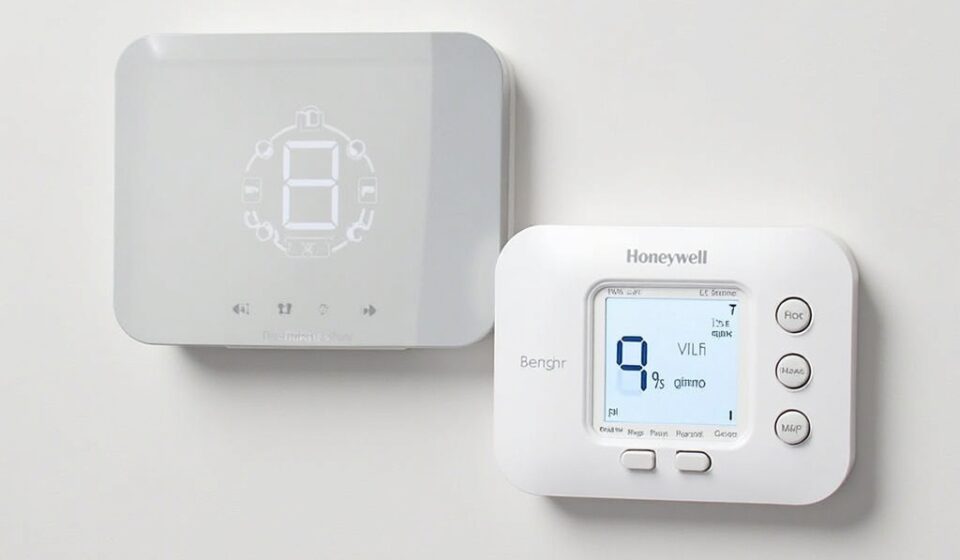

In today’s tech-savvy world, smart home devices are revolutionizing how we manage our living spaces, and the Honeywell WiFi thermostat is a standout choice for home temperature control. This guide will explore its features, benefits, installation process, and how it can enhance your home’s energy efficiency and comfort.
What is a Honeywell WiFi Thermostat?
A Honeywell WiFi thermostat is an intelligent device that allows you to remotely control the temperature of your home using a smartphone, tablet, or computer. With integrated Wi-Fi connectivity, these thermostats provide users with real-time access to their heating and cooling systems from anywhere.
Key Features
1. Remote Access and Control
With the Honeywell app, you can adjust your home’s temperature settings from virtually anywhere. This feature comes in handy when you’re traveling or coming home from work, ensuring that your home is always at a comfortable temperature.
2. Energy Reports
The thermostat tracks your energy usage and provides you with detailed reports. These insights allow you to make informed decisions about your heating and cooling habits, helping you save on energy bills.
3. Smart Scheduling
The Honeywell WiFi thermostat allows you to set custom schedules based on your daily routine. Create different temperature settings for different times of the day to maximize comfort and efficiency.
4. Voice Control
Compatible with smart home assistants like Amazon Alexa and Google Assistant, you can control your thermostat with voice commands. This feature enhances convenience, making it easier to adjust settings without needing to reach for your phone.
5. Alerts and Reminders
Receive notifications about maintenance needs, filter changes, and extreme temperature alerts. This proactive approach helps you maintain your HVAC system for optimal performance.
Benefits of Using a Honeywell WiFi Thermostat
1. Improved Energy Efficiency
By optimizing heating and cooling schedules, Honeywell WiFi thermostats can significantly reduce energy consumption. Adjusting temperatures when you are not home can lead to significant savings on energy bills.
2. Enhanced Comfort
The ability to adjust your home’s temperature remotely ensures that you always return to a comfortable environment. Simply set your desired temperature before you arrive home, and enjoy a perfect ambiance.
3. Increased Home Value
Investing in smart home technology can increase your home’s value. Potential buyers often look for energy-efficient features, and a Honeywell WiFi thermostat is a valuable addition.
4. User-Friendly Interface
Honeywell thermostats are designed with an intuitive interface, making them easy to program and modify settings. The touchscreen display simplifies navigation through various options.
Installation Process
Step 1: Remove the Old Thermostat
Turn off your HVAC system and remove the old thermostat by unscrewing it from the wall and disconnecting the wires.
Step 2: Install the Honeywell Thermostat
Follow the manufacturer’s instructions to install the new thermostat. Connect the wires to the corresponding terminals, ensuring correct placements.
Step 3: Connect to Wi-Fi
Once installed, turn on your thermostat and follow the prompts to connect it to your home Wi-Fi network.
Step 4: Download the App
Download the Honeywell Home app on your smartphone, create an account, and add your thermostat to begin controlling it remotely.
Step 5: Set Your Preferences
Customize your temperature settings, create schedules, and integrate with your smart home system for seamless operation.
Conclusion
Investing in a Honeywell WiFi thermostat is one of the best decisions for enhancing home comfort and energy efficiency. With features like remote access, smart scheduling, and energy reports, this device not only simplifies your life but also contributes to a greener planet. Whether you’re looking to save on energy bills or create a more comfortable living environment, the Honeywell WiFi thermostat is a top choice for any homeowner.
FAQs about Honeywell WiFi Thermostats
1. What is a Honeywell WiFi thermostat?
A Honeywell WiFi thermostat is a smart device that allows you to control your home’s heating and cooling from a smartphone, tablet, or computer via Wi-Fi.
2. How do I connect my Honeywell thermostat to Wi-Fi?
Once the thermostat is installed, follow the on-screen prompts to connect it to your home Wi-Fi network. You can also use the Honeywell Home app for setup.
3. Can I control my Honeywell thermostat with my voice?
Yes, Honeywell WiFi thermostats are compatible with smart home assistants like Amazon Alexa and Google Assistant, allowing for voice control.
4. How do energy reports work?
Energy reports provide insights into your energy usage, showing how much heating and cooling you use over time. This information helps you identify trends and make energy-saving adjustments.
5. Is professional installation required?
While many users can install Honeywell thermostats themselves, professional installation may be advisable if you’re unsure about the wiring or your HVAC system.
6. What happens during a power outage?
In the event of a power outage, the thermostat will typically retain its settings. However, if it’s battery-operated, ensure the batteries are functional to maintain its operation during outages.
7. How can I reset my Honeywell thermostat?
To reset, access the settings menu on your thermostat and select the reset option. Refer to the user manual for specific reset instructions.
8. Do Honeywell thermostats require a C-wire?
Many Honeywell WiFi thermostats require a C-wire (common wire) for continuous power. However, some models have battery backup or come with power adapters that eliminate the need for a C-wire.
9. Can I use the thermostat without Wi-Fi?
Yes, you can use the thermostat without Wi-Fi, but you will lose remote access and some smart features, like scheduling and energy reports.
10. What should I do if my thermostat isn’t responding?
First, check if the thermostat is powered on and connected to Wi-Fi. If it’s unresponsive, try resetting it or consulting the user manual for troubleshooting tips.
FOR FURTHER INFORMATION, VISIT:itsgeekweek.com